
Live Subtitles for Mac: Caption Audio from Videos, Meetings, and Apps
If you want live subtitles for a video, meeting, or podcast on your Mac, first check whether the app already offers captions.
2026-08-10 · 9 min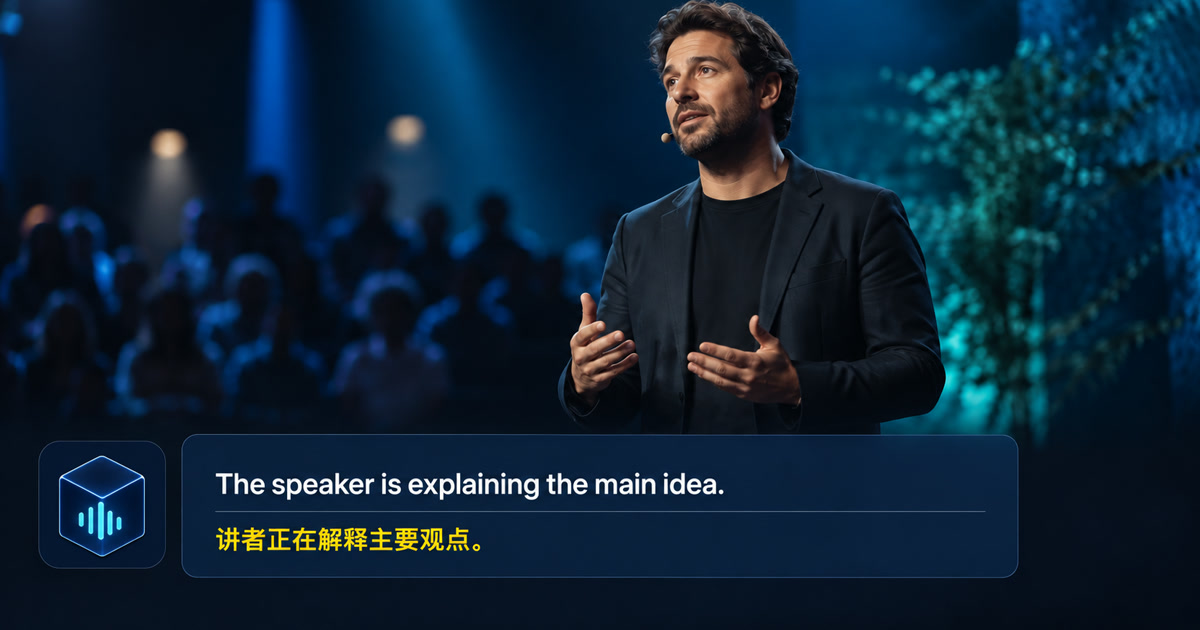
Start with the captions closest to the source
If you want live subtitles for a video, meeting, or podcast on your Mac, first check whether the app already offers captions. If it does not, macOS Live Captions can transcribe supported speech from computer audio, while a Mac audio-caption app can provide a separate overlay. If you need the spoken words translated, check that the tool supports both the source language and your target language. Live subtitles are useful for following speech as it happens; they are not a verified transcript of everything said. A video player may offer subtitles supplied by its creator. A meeting service may offer captions to participants. Those options can preserve speaker information or timing that a separate audio tool does not have. Look for the player's CC or Subtitles control, or the meeting's Captions control, before setting up another app. If a translated track exists, compare it with the original when names or numbers matter.
When the source has no useful captions, Apple's Live Captions can transcribe audio coming from the Mac. Open System Settings > Accessibility > Live Captions, turn it on, and select Computer Audio in the Live Captions window. Apple says the feature requires Apple silicon and is not available in every language, country, or region. It also distinguishes Computer Audio from Microphone, which is intended for speech around you. Apple's Mac guide
Watch the video
A short introduction to Alison Workspace live captions and real-time translation for audio playing on a Mac.
Choose the audio you actually want to read
Alison Workspace provides three selectable live input modes: system audio, microphone, or both. For a call, system audio can caption remote speech the Mac plays; microphone mode can caption nearby speech; both mode labels the sources separately and lets each use its own recognition and translation languages. Whether a call exposes the expected sound depends on its client, Mac, audio devices, and permissions, so test first. Alison does not join the call or access its account, and it does not turn captions into spoken replies.
Read captions with the right expectations
Automatic captions can miss a proper name, number, accent, quiet speaker, or overlapping conversation. Keep the source audio available, and replay any sentence you plan to quote or act on. A caption overlay is especially helpful when you need to glance away from a meeting or follow an unfamiliar accent, but it should not replace approved accessibility support or a human-reviewed record for consequential situations.
Make the subtitles readable in your workspace
Put the subtitle window near the speaker or shared content without covering controls. Increase text size until you can read a line at a glance. During a meeting, leave enough room to see who is speaking and any slides; during a video, keep the player's controls reachable. If two language lines are displayed, make the original distinguishable from the translation so you can check a doubtful phrase quickly.
Use a short test before a real meeting
Start with a predictable clip in one language and note whether captions appear promptly. Then test the same output device, browser or meeting app, and window arrangement you plan to use later. A successful test in one player does not prove that protected media or a different audio route will work. This small rehearsal also tells you whether the language model and translation resource are ready.
Understand privacy and permissions
macOS may ask for Screen & System Audio Recording permission for an app that reads playback audio. Review the prompt and the app's privacy information before granting it. Alison Workspace's documented current workflow processes accessible playback audio locally after the required resources are installed; it does not save raw audio or screen frames, while its local text history remains until you delete it. Follow your organization's rules for confidential meetings.
Fix the most common failure points
No text usually means the selected input is wrong, the app lacks the required macOS permission, or the audio is not reaching the Mac's accessible playback route. Wrong text often points to an incorrect spoken-language setting or difficult audio. Original captions with no translation call for a check of the target language and its installed resources. Protected media and unusual playback routes may prevent capture. Test with a simple, unprotected clip before troubleshooting a complex meeting or stream.
Choose the next step for your situation
For a video with good built-in captions, turn those on and adjust their appearance. For a meeting with an available platform caption feature, start there. For spoken Mac audio without a usable text track, test Apple's Live Captions if its language covers your need. When you need both the original and a supported translated line over accessible Mac playback, test a bilingual overlay. These choices can complement one another; the right one is the one that answers your listening problem on the actual source.
Official sources checked September 26, 2026
Apple Support — Get captions of spoken and computer audio on Mac
Apple Developer — ScreenCaptureKit
Frequently asked questions
Does Mac have built-in live subtitles?
Yes. Apple's Live Captions can transcribe supported spoken and computer audio on compatible Apple-silicon Macs, subject to language and regional availability.
Can live subtitles translate speech?
Transcription and translation are separate functions. Check the exact language pair and the tool's translation support rather than assuming every caption can be translated.
Will this work with headphones?
The important test is whether the audio is playing through an accessible route on the Mac. Use a short clip with the output device you will actually use.
Does a caption app need my microphone?
Microphone access is optional and requested only when you choose microphone input. System-audio playback uses a separate macOS permission.
Can I save the result as official meeting minutes?
Review the original audio and correct important details first. Live recognition can make errors and may omit overlapping speakers.
Why are captions blank?
Check the input source, Mac permission, actual playback route, speech language, and whether the media is protected.