
How to Choose a Real-Time Audio Translator for Mac
Compare the main ways to translate audio on a Mac: meeting features, browser tools, built-in captions, and system-audio apps. Learn which questions matter for language pairs, privacy, delay, accuracy, and everyday use.
2026-08-26 · 10 min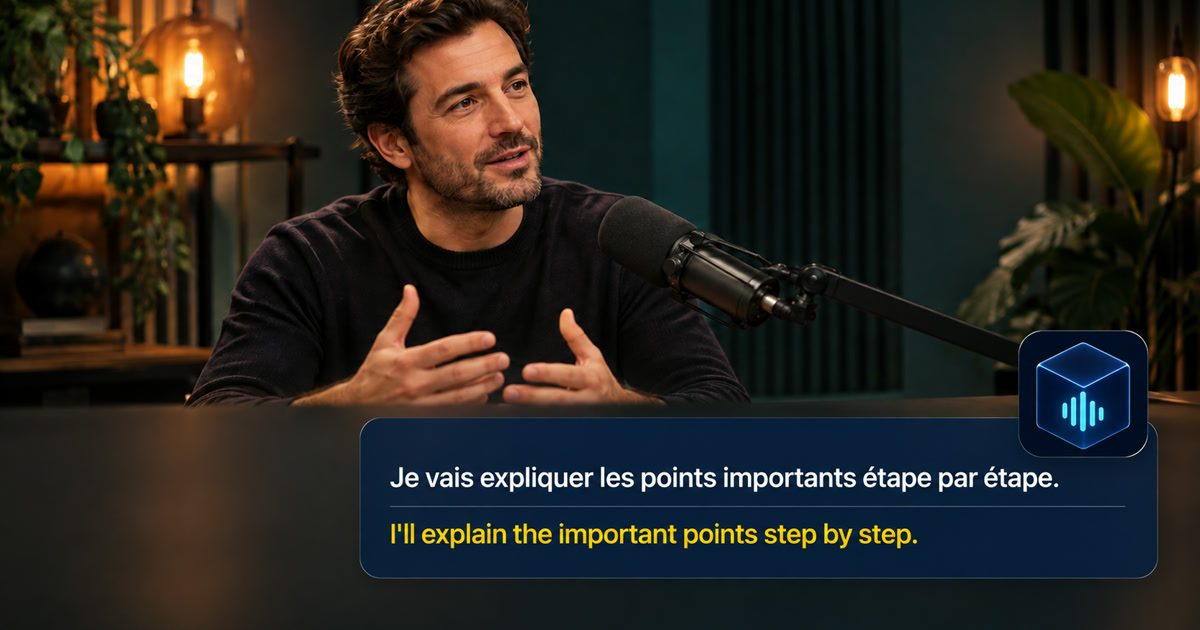
First decide what you mean by audio translation
“Translate audio on Mac” can describe several different jobs. You may want a translated subtitle while watching a video, bilingual text during a meeting, a transcript in the original language, or spoken interpretation through headphones. These are not interchangeable. A meeting platform may translate its own captions, a browser extension may work only with web pages, and a system-audio workflow may read sound produced by different Mac apps. Write down the source, the spoken language, the language you want to read, and whether you need the original line to remain visible. That simple definition prevents you from choosing a tool that solves the wrong problem.
The five decisions that shape the right choice
Choose the audio source first: browser, meeting client, media player, microphone, or a combination. Then choose the translation direction and whether the language pair is supported in the mode you need. Decide how much delay you can tolerate: a few seconds may be fine for a lecture, while a live conversation needs a faster and more readable display. Compare where recognition and translation happen, what is stored, and which permissions are requested. Finally, decide whether you need a temporary reading aid or a transcript you will edit, search, and keep. These choices matter more than a long list of supported languages.
Compare the four common approaches
Built-in operating-system features are convenient and may be enough for a supported language and app, but availability can vary by macOS version, hardware, country, or region. Meeting-platform translation is easy when the conversation stays in one service, but its output and controls may depend on the host and plan. Browser tools are a good fit for YouTube, web courses, and other tab-based audio, but they may not see sound from a native application. A system-audio translator can provide one floating workflow across videos, podcasts, courses, and meeting clients, but it needs audio permission and still depends on clear speech. Pick the approach that matches your most common source, not the one with the longest feature list.
Privacy and accuracy are connected, but they are different questions
A service can be convenient while sending audio or text to a remote provider; a local workflow can keep processing on the device but still produce imperfect recognition. Ask two separate questions: where does the audio go, and how good is the result for my speaker and topic? Check whether raw audio, captions, translations, or history are retained. For accuracy, test names, numbers, accents, technical vocabulary, music, and overlapping speakers. Keep the original language visible for contracts, instructions, medical information, or any sentence where a small translation error matters. Live translation is a reading aid, not certified interpreting.
Where Alison Workspace fits
Alison Workspace is a Mac system-audio workflow for live bilingual text on supported Apple silicon Macs. It can be a practical fit when you want to read the original and translated lines while audio plays from a video, podcast, online course, or remote meeting. It does not turn every audio source into perfect interpretation: protected media, unclear speech, overlapping speakers, accents, music, and rare terminology can affect recognition and translation. Review the current language and macOS requirements, allow the requested audio permission, and run a short test with the exact app and language pair you plan to use.
A reliable test before you buy or depend on it
Use a one-minute clip with one clear speaker. Start with the original language, confirm that the tool receives computer audio rather than an unintended microphone, and check whether the translation appears quickly enough to follow. Test a proper name, a number, and one term from your work or study. Repeat with your real meeting app or video player. If the result is empty, check output routing, muted tabs, macOS audio permissions, language resources, and protected playback. A real test tells you more than a claim such as “instant” or “works everywhere.”
Frequently Asked Questions
What is the best real-time audio translator for Mac?
The best choice depends on the source, language pair, privacy requirement, acceptable delay, and whether you need text or spoken interpretation. Compare those conditions and test the actual video, meeting, or app you use.
Can I translate YouTube, Zoom, Google Meet, or Teams audio on a Mac?
Usually the answer depends on the audio path. A browser tool may handle a video tab, a meeting feature may handle its own call, and a system-audio tool may read audio from multiple apps. Permissions and protected playback can still limit capture.
Is real-time translation the same as transcription?
No. Transcription turns speech into text in the spoken language. Translation changes that meaning into another language. A bilingual workflow can show both, but neither guarantees a perfect record.
Can live audio translation work offline?
Some workflows can process locally after the required language resources or models are available. Offline availability, language coverage, and accuracy vary, so check the specific app and test it without a network before relying on it.