
Translate a Recorded Meeting on Mac Without Uploading the Recording
A detailed Mac workflow for translate recorded meeting on Mac without uploading, including platform choices, language settings, permissions, privacy, and limits.
2026-09-27 · 9 min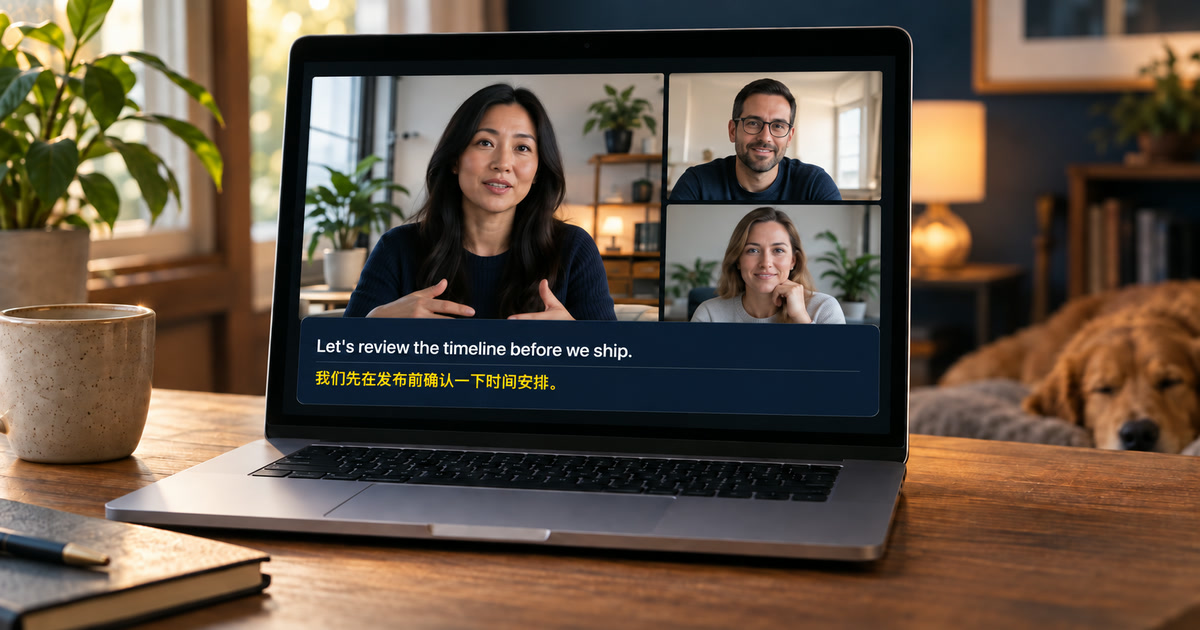
The practical distinction is playback-time help versus file processing
A recorded meeting can be translated in two very different ways. A file-upload service receives the recording, processes it, and may offer an export or editor. Alison Workspace is for a different use: play an authorized recording on your Mac and read live source text with an optional translation in a floating panel. It does not require uploading the meeting file to a transcription website, but it is not an editable SRT production workflow or an official replacement for the meeting owner's record.
Start with the record you are permitted to use
Before settings, establish whether you may play, translate, retain, or share the recording. A Zoom, Teams, Webex, or local video recording can contain personal data, client information, private chat, or contractual material. The fact that processing is local does not give permission to create notes or distribute translation. If the meeting organizer provides an approved transcript, captions, or recording portal, use that as the authoritative reference and use a personal overlay only as a reading aid.
Prepare a controlled playback session
Open the authorized recording in its normal player on the same Mac. This can be a platform playback page, VLC, IINA, QuickTime, or another player that delivers accessible audio. Allow the requested system-audio permission, choose the real output route, and close unrelated sound sources. Alison requires macOS 15 or later on Apple silicon from M1. Download recognition and translation resources before working through a long recording, especially when the meeting contains more than one language.
Choose settings per speaker segment
Select the language being spoken as the recognition language, then choose the translation target separately. A bilingual meeting may need pausing and changing the source setting between portions; it is better to do that than ask one recognizer to guess every language. Translation availability depends on Apple resources installed on the Mac and may vary by system version and region. Check the pair on the actual Mac before starting a time-sensitive review.
Use the advantages of a recording
Unlike a live call, a recording lets you pause, replay, slow down, and return to a difficult phrase. Use those controls deliberately: first listen to a clear one-minute segment, then replay a sentence with names, figures, dates, actions, and negation. Keep original and translation visible. If the source line is wrong, replay the source or seek an official agenda, slide, email, or owner-provided transcript before treating the translated line as a fact.
Do not confuse readable text with meeting minutes
The caption history can help you orient yourself in a long recording, but it is not necessarily complete, speaker-labelled, reviewed, or legally reliable. The current workflow does not join the original meeting, read private meeting metadata, or reconstruct who spoke when. For minutes, HR, legal evidence, regulated records, or customer commitments, follow the organization's approved transcription, retention, and review process. Use personal live translation to understand, then record decisions through the proper channel.
Understand the local-processing boundary
After resources are installed, Alison's supported capture, recognition, and translation run on the Mac. It does not store raw audio or screen frames. Local text history stays until deleted, so delete it when the retention rule requires it. The recording player may still need the Internet, a login, or a valid entitlement; local processing does not defeat digital-rights controls, downloading restrictions, or access policies.
Troubleshoot the playback path
No text means first checking that the recording is actually audible on the Mac, that the selected player and output route expose accessible playback audio, and that permission and recognition resources are ready. Text with no translation means checking target resources. If results degrade when speakers overlap, use the recording controls to isolate a segment. Protected streaming playback may not be capturable. If you need a searchable exported transcript or a formal subtitle file, choose a reviewed file-processing workflow instead of assuming a floating live-caption panel produces one.
Official sources checked September 27, 2026
Apple Support — Get captions of spoken and computer audio on Mac
Frequently asked questions
Does this change the platform's captions for everyone?
No. Alison is a personal floating caption layer for accessible Mac playback. It does not change the platform's caption track or send captions to other viewers.
Do I need a meeting bot, browser extension, or microphone permission?
No. The current playback workflow reads accessible audio already playing on the Mac; it does not join calls as a bot or use your outgoing microphone speech.
What Mac is required?
Use macOS 15 or later on an Apple-silicon Mac from M1. Intel Macs are not supported.
Can I trust every translated line?
No. Verify names, figures, dates, negative statements, and consequential information against the original audio and authoritative materials.
Does local processing mean I can ignore the source's rules?
No. Copyright, confidentiality, consent, recording, and platform rules still control what you may play, retain, or share.
What should I check first if captions do not appear?
Check audible Mac playback, system-audio permission, the selected output route, and readiness of recognition and translation resources.