
How to Translate a Webex Meeting on Mac Without a Meeting Bot
A detailed Mac workflow for translate Webex meeting on Mac without a bot, including platform choices, language settings, permissions, privacy, and limits.
2026-09-27 · 9 min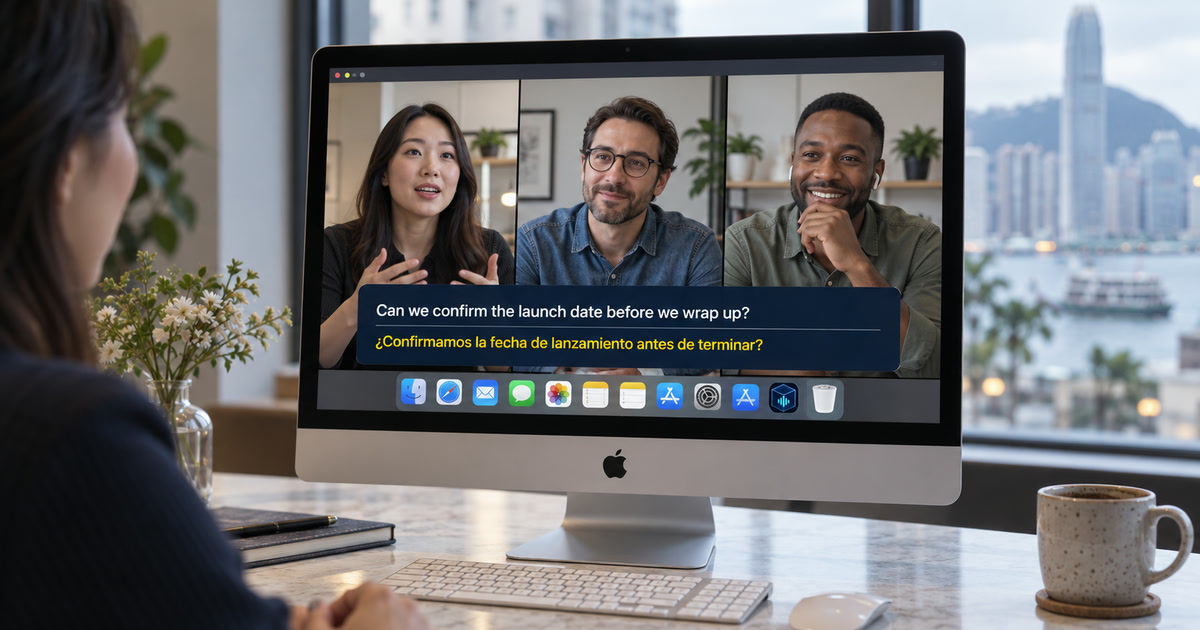
Start by separating Webex's feature from your personal reading aid
Webex can provide captions and translated captions inside a meeting, but that is a host and administrator controlled feature. Cisco's current guidance says real-time translation is an add-on, requires Webex Assistant to be enabled for the host, and is unavailable to attendees in webinar webcast view. That is why a participant can arrive at a valid Webex session and still have no usable translation control. Alison Workspace does not alter those Webex controls. It is a separate, attendee-side caption window for speech that is already playing through an accessible Mac audio path.
Choose the workflow that matches the meeting
If the host has enabled a readable caption language you need, use Webex's built-in captions first: they are synchronized with the meeting and are the organizer's intended accessibility feature. Use a personal overlay when the host cannot change the setup, the translated language is missing, the meeting is in a restricted webinar mode, or you want source and translation together for yourself. This is not a workaround for access restrictions, and it does not turn you into an interpreter for other attendees.
Prepare before joining, not during introductions
Install the required recognition and translation resources before the call. Alison requires macOS 15 or later and an Apple-silicon Mac from M1. Open a permitted Webex test meeting or recording with the same Webex desktop app, browser, headset, Bluetooth device, dock, or display you will use. Let macOS grant the system-audio permission that Alison requests. If the sound changes when you connect headphones, run the test again; audio routing is the first thing to confirm.
Set the languages by role
Set the speaker's actual spoken language as the recognition language. Then select the language you want to read as the translation target. A meeting in Spanish for an English reader therefore needs Spanish recognition and English translation, not English recognition. Translation targets are checked against Apple Translation resources on the Mac and can vary by macOS version, region, and installed languages. Complete the download and verify the pair before a client meeting, training, or webinar begins.
Use a short live check with meaningful details
During a test, ask one person to state a name, a date, a price, and a negative sentence such as 'the deadline is not Friday.' Read the original line beside the translation. If the original line misses the name, the translation cannot reliably repair it. If the original is correct but the translation is unclear, slow the speaker down or ask for the chat, slide, or follow-up note. This small check is more useful than judging the app from a greeting.
Know what other people can and cannot see
Alison's floating window is personal. It does not join the Webex participant list, install a Webex integration, send captions to the meeting, read meeting chat, or translate your outgoing microphone speech. Other people see it only if you intentionally share the screen area containing it. If you need bilingual captions for every attendee, an approved Webex configuration or the organizer's captioning service is the appropriate path.
Treat privacy and meeting policy as separate questions
After required resources are downloaded, Alison's supported capture, recognition, and translation flow runs on the Mac. The product does not save raw audio or screen frames; local text history remains until you delete it. That does not override a customer's confidentiality rule, a webinar's no-recording condition, contractual restrictions, or your employer's data policy. For regulated, high-stakes, or official records, use the organization-approved process and verify consequential details from the source.
Troubleshoot the exact failure
No text usually means Webex is not playing audio through the selected Mac route, permission was denied, another audio source is active, or the recognition resource is unavailable. Source text with no translation points to the selected target or missing Apple language resource. Repeatedly wrong text often comes from overlapping speakers, poor remote audio, jargon, acronyms, or a wrong source language. Protected or inaccessible playback paths may not be capturable. Stop, test a short clear passage, and use official captions when they are available.
Official sources checked September 27, 2026
Webex Help — Grant licenses for real-time translation
Apple Support — Get captions of spoken and computer audio on Mac
Frequently asked questions
Does this change the platform's captions for everyone?
No. Alison is a personal floating caption layer for accessible Mac playback. It does not change the platform's caption track or send captions to other viewers.
Do I need a meeting bot, browser extension, or microphone permission?
No. The current playback workflow reads accessible audio already playing on the Mac; it does not join calls as a bot or use your outgoing microphone speech.
What Mac is required?
Use macOS 15 or later on an Apple-silicon Mac from M1. Intel Macs are not supported.
Can I trust every translated line?
No. Verify names, figures, dates, negative statements, and consequential information against the original audio and authoritative materials.
Does local processing mean I can ignore the source's rules?
No. Copyright, confidentiality, consent, recording, and platform rules still control what you may play, retain, or share.
What should I check first if captions do not appear?
Check audible Mac playback, system-audio permission, the selected output route, and readiness of recognition and translation resources.