
How to Caption a Hybrid Meeting on Mac: Room Voices and Computer Audio Together
Combine Mac playback captions with a selected microphone for in-room voices, then test both sources separately before a hybrid meeting.
2026-10-05 · 6 min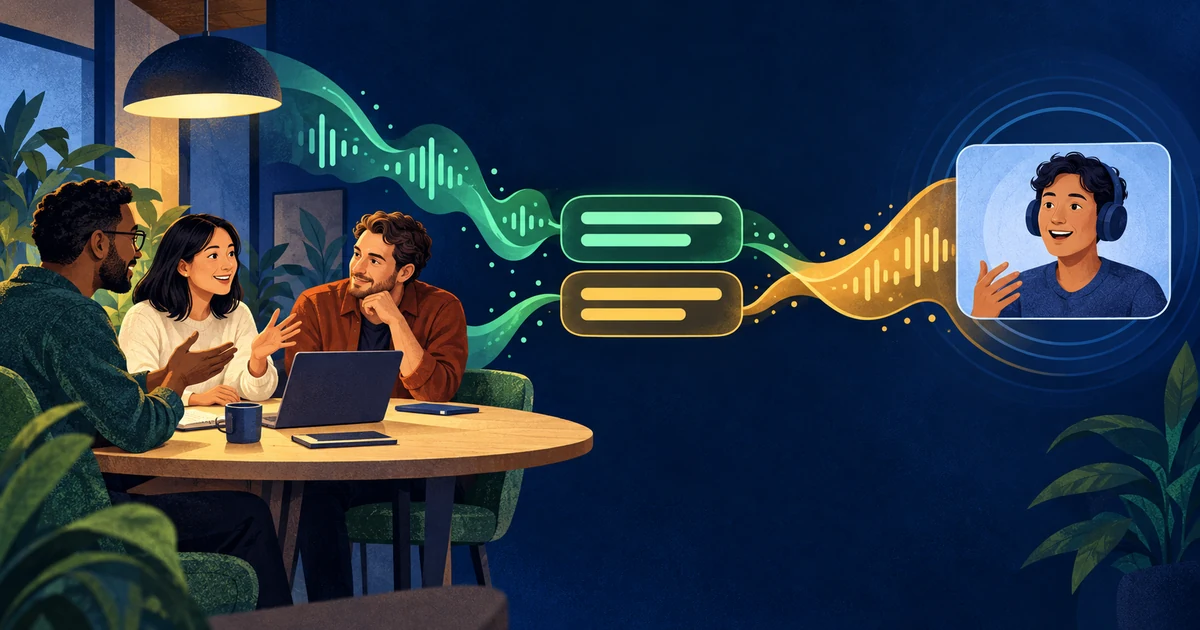
The short answer
For a hybrid meeting, select both system audio and microphone input in Alison Workspace: system audio can capture remote voices played by the meeting app, while the microphone can pick up people in the room. The two sources appear separately, and each can use its own recognition and translation language. Test the actual conference setup first; echo, overlap, and room acoustics can affect captions.
Use the meeting platform’s captions when they fit
Start with the meeting service’s own captions or translated captions when they are available and meet the group’s needs. A Mac-wide caption layer is an additional personal reading aid, not a meeting-platform integration. Alison Workspace does not join as a bot or create a shared transcript for attendees.
Set up both audio sources
Open Alison Workspace’s live input settings and choose both system audio and microphone. Select the room microphone you intend to use, allow microphone access if macOS asks, and confirm the meeting app is playing through the Mac output being captioned. Set the recognition and translation languages for each source separately. If one source is enough for part of the meeting, you can select that source on its own.
Test the room, remote audio, and echo
Ask one remote participant to speak, then have one person in the room speak. Confirm that each line appears under the expected source label before enabling translation. If the room microphone hears the meeting loudspeaker, the same remote sentence may appear twice or sound less clear. Headphones can reduce playback leaking into the room mic. Test your actual speakers, headset, dock, and seating arrangement; changing them may change the result.
Keep accuracy, privacy, and consent in view
Alison Workspace requires macOS 15 or later on an Apple-silicon Mac (M1 or newer). Recognition and translation resources may need a first download; supported processing then runs on the Mac. It does not save raw audio or screen frames, but local caption text remains until you delete it. The app receives mixed room speech through the chosen microphone, not separate verified participant tracks. Tell attendees what you are doing, follow meeting rules, and confirm important decisions in the meeting.
Official sources checked October 5, 2026
Alison Workspace on the Mac App Store
Get captions of spoken and computer audio on Mac — Apple Support
Control access to the microphone on Mac — Apple Support
Frequently asked questions
How do I caption both remote and in-room speakers?
Choose both system audio and microphone input. Test a remote speaker and a room speaker separately so you can confirm each source is reaching the app.
Can each source use a different language?
Yes. Alison Workspace lets you configure recognition and translation languages separately for system audio and microphone input, subject to resources available on your Mac.
Why do I see duplicate captions?
The room microphone may pick up the meeting audio played through speakers as well as people in the room. Try headphones, lower the speaker volume, or use one source if that better matches the meeting.
Does Alison Workspace join the meeting?
No. It is a separate Mac caption app and does not join as a meeting bot or publish a shared transcript.
What is required to use both sources?
You need macOS 15 or later on an Apple-silicon Mac (M1 or newer), the appropriate system-audio and microphone permissions, and available recognition or translation resources.