
Korean Livestream to English Subtitles on Mac
A detailed Mac workflow for Korean livestream to English subtitles Mac, including platform choices, language settings, permissions, privacy, and limits.
2026-09-27 · 9 min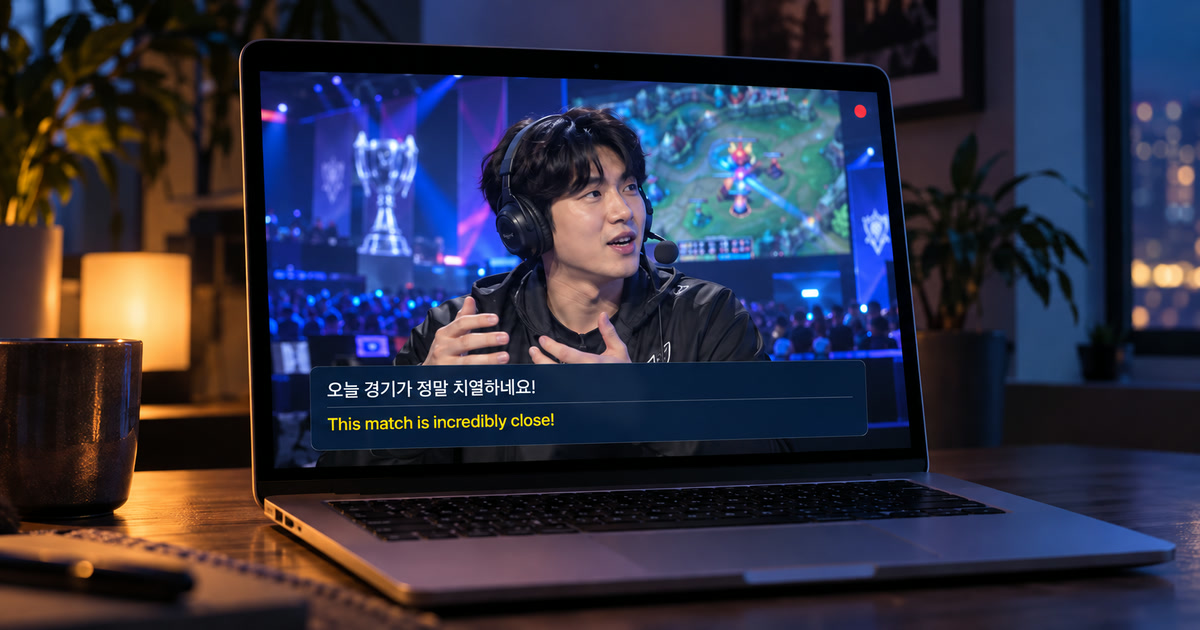
A livestream needs a different expectation from a video
For a Korean livestream, the viewer has to follow the audio as it arrives, often without a caption file, a replay button, or a stable speaker. Check the platform's own captions and translations first. A creator may provide a caption track, but the availability and quality vary by service and stream. Alison is useful as a personal Mac overlay when Korean speech is playing through an accessible audio route and you need source and English text while you watch. It does not add captions to the public stream.
Do the setup before the countdown begins
Download the Korean recognition resource and confirm English as an available translation target before the broadcaster starts. Alison requires macOS 15 or later on an Apple-silicon Mac from M1. Open a permitted past broadcast, trailer, or test stream on the same app or browser, grant system-audio access, and use the same headphones, Bluetooth device, display, or dock. Live events leave little time to discover that an output device changed the usable audio route.
Keep the source language visible
Set Korean as the recognition language and English as the translation target. Keep both lines visible rather than reading English alone. A Korean name, gaming term, product name, number, or laugh can be recognized imperfectly before it reaches translation. Source and translation together let you decide whether a mistake began with speech recognition or with interpretation. They also help language learners notice a repeated expression without turning a live session into a formal lesson.
Control the audio competition
A livestream often includes game sounds, music, alerts, voice chat, co-hosts, and viewer call-ins. Close unrelated audio tabs and turn off notification sounds. Place the caption panel where it does not cover chat, stream controls, or subtitles supplied by the creator. If the streamer uses background music under speech, test a quiet spoken segment rather than judging accuracy from a highlight reel. In crowded audio, no live transcription tool should be treated as exact.
Read delays as part of the workflow
Recognition and translation require a short processing delay. That is usually acceptable for following a presentation, an interview, or casual stream conversation, but it is a poor basis for competitive game timing, emergency information, auction bids, or any action that must happen instantly. If a moment matters, use the platform replay or wait for a recording and verify it. Never make a safety, medical, financial, or contractual decision solely from a live machine translation.
Understand the personal scope
The overlay stays on your Mac. It does not log into a streaming account, send a caption request to the broadcaster, read chat, control moderation, install an extension, or turn your own voice into Korean or English speech. If you are the creator and want audience-wide captions, use the platform's captioning workflow or a professional caption provider. The viewer-side method is for personal reading of accessible playback audio.
Respect the stream and its community
After the required resources are installed, Alison's supported processing runs locally on the Mac and does not store raw audio or screen frames; local text history remains until you delete it. This technical behavior does not change the broadcaster's copyright, community rules, paid-content terms, or privacy expectations. Do not use personal captions as a reason to record, redistribute, or publish translated chat or dialogue without permission.
Fix the observable issue
No captions: confirm the Korean stream is audible through the selected Mac output and that the system-audio permission and recognition resource are ready. Korean source but no English: check the translation target and downloaded language resources. Bad output: test a presenter-only segment, reduce competing sound, and keep original text visible. If the player uses a protected or inaccessible route, capture may not be available. Platform captions, when available and accurate, remain the preferred first choice.
Official sources checked September 27, 2026
YouTube Help — Use automatic captioning
YouTube Help — Live caption requirements
Twitch Help — Guide to Closed Captions
Frequently asked questions
Does this change the platform's captions for everyone?
No. Alison is a personal floating caption layer for accessible Mac playback. It does not change the platform's caption track or send captions to other viewers.
Do I need a meeting bot, browser extension, or microphone permission?
No. The current playback workflow reads accessible audio already playing on the Mac; it does not join calls as a bot or use your outgoing microphone speech.
What Mac is required?
Use macOS 15 or later on an Apple-silicon Mac from M1. Intel Macs are not supported.
Can I trust every translated line?
No. Verify names, figures, dates, negative statements, and consequential information against the original audio and authoritative materials.
Does local processing mean I can ignore the source's rules?
No. Copyright, confidentiality, consent, recording, and platform rules still control what you may play, retain, or share.
What should I check first if captions do not appear?
Check audible Mac playback, system-audio permission, the selected output route, and readiness of recognition and translation resources.