
How to Get Live Chinese Subtitles for English Lectures on Mac
Learn how to show live Chinese subtitles for English lectures on Mac. Use English-Chinese bilingual captions for courses, webinars, university lectures, and online learning.
2026-09-30 · 12 min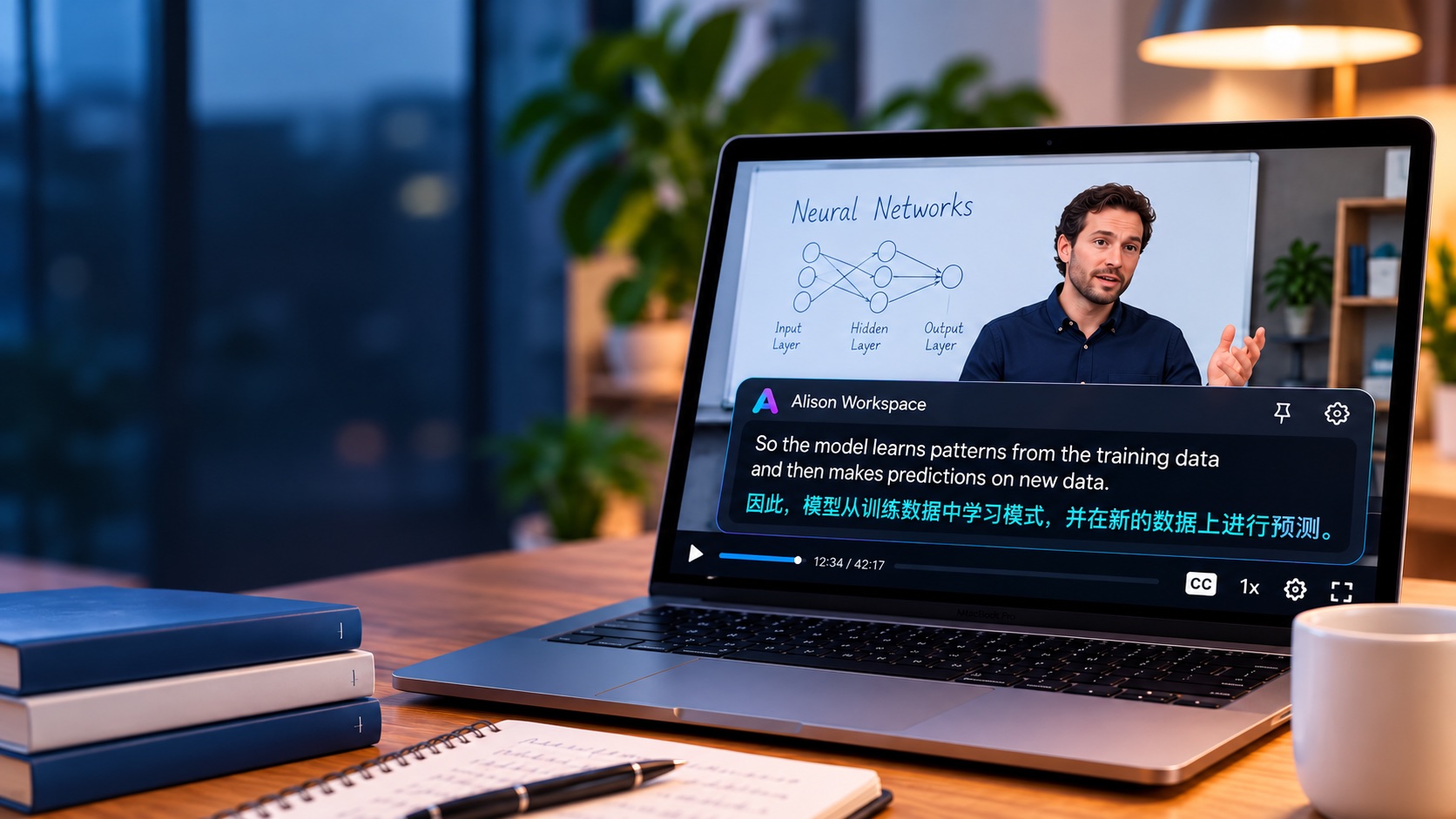
The Problem Is Usually Listening, Not Access to the Course
A student may be perfectly capable of reading an English textbook while still struggling with an English lecture.
Spoken language introduces several additional difficulties:
- the instructor controls the speed;
- words disappear as soon as they are spoken;
- accents vary;
- technical terms may be unfamiliar;
- several ideas can appear in one long sentence;
- slides often contain less information than the instructor says;
- there may be no time to translate before the next sentence begins.
Consider a machine-learning lecture.
An instructor might say:
"If the model performs well on the training set but poorly on unseen data, we may be dealing with overfitting."
A learner may recognize model, training set, and data, yet still need a moment to understand the full explanation.
If a Chinese translation appears underneath the English sentence while the instructor continues speaking, that extra comprehension layer can make it much easier to stay with the lecture.
First, Check Whether the Lecture Already Has Chinese Subtitles
Before using another tool, always check the platform itself.
Many education and video platforms provide subtitles or translated subtitles.
Depending on the course, you may find Chinese subtitles already available on:
- Coursera;
- Udemy;
- YouTube;
- university learning platforms;
- recorded webinars;
- conference websites;
- other online learning services.
If the platform provides accurate Chinese subtitles, those are often the simplest option.
They may have been reviewed by the instructor or created specifically for the course, and they may handle technical terminology better than real-time speech recognition.
A live translation tool becomes useful when:
- Chinese subtitles are unavailable;
- only English subtitles are provided;
- you want English and Chinese visible at the same time;
- the content is live;
- you regularly move between different learning websites;
- you want one subtitle workflow across your Mac.
What Apple's Built-In Live Captions Can Do
Apple silicon Macs include Live Captions for supported languages and regions.
Live Captions can transcribe spoken audio coming from your Mac, including audio from apps and websites, and Apple says that the audio is processed on the device.
For an English lecture, this can be very useful if your main problem is simply hearing the English clearly.
Instead of relying only on the instructor's voice, you can read the English sentence as it is spoken.
But transcription and translation are different things.
Apple's system-wide Live Captions feature is primarily designed to turn speech into text in the spoken language. Apple's Live Translation features are available in specific communication experiences such as FaceTime, Messages, and Phone.
So if your goal is:
English lecture audio → live Chinese translation
while watching an ordinary browser-based course, video, webinar, or lecture recording, you may still need a separate translation layer.
How Alison Workspace Handles English-to-Chinese Lectures
Alison Workspace works at the Mac audio level rather than being tied to one education platform.
The workflow is:
English audio
→ speech recognition
→ English live caption
→ Chinese translation
→ floating bilingual subtitle window
The original course continues playing normally.
There is no need for Alison Workspace to modify the website itself.
This means the same basic workflow can be used while watching:
- a Coursera lecture;
- an Udemy course;
- a university recording;
- a YouTube lecture;
- a live webinar;
- a conference presentation;
- a technical tutorial;
- a browser-based training session;
- another ordinary audio source on the Mac.
Simplified Chinese and Traditional Chinese
Alison Workspace currently supports both Simplified Chinese and Traditional Chinese as translation targets, subject to the language resources available on the user's Mac.
That means an English-speaking instructor can be recognized in English while the translated line is displayed as:
简体中文
or:
繁體中文
depending on the learner's preference and available system resources.
Recognition and translation are separate settings.
For an English lecture, the recommended setup is:
Spoken language: English
Translation language: Simplified Chinese or Traditional Chinese
Explicitly selecting English is normally better than relying on automatic language detection when you already know the lecture language.
How to Get Live Chinese Subtitles for an English Lecture
A typical setup takes only a few steps.
- Open the lecture
Start the course, video, webinar, or lecture on your Mac.
Do not start with Alison Workspace yet.
First make sure the lecture audio plays correctly through the Mac.
- Check the platform's subtitle menu
Look for:
- CC;
- Subtitles;
- Captions;
- Translation;
- Language.
If Chinese subtitles are already available and work well, use them.
There is no reason to add another tool unnecessarily.
- Open Alison Workspace
Launch Alison Workspace and grant the system permissions required for capturing accessible Mac audio.
- Set the spoken language to English
If the instructor is speaking English, explicitly select English as the recognition language.
- Choose Chinese as the translation target
Select either:
- Simplified Chinese; or
- Traditional Chinese.
- Start live captioning
Resume the lecture.
The English speech should begin appearing as text, followed by its translated Chinese line.
- Position the subtitle window
Move the floating subtitle bar to an area that does not cover:
- slides;
- code;
- diagrams;
- mathematical formulas;
- playback controls.
You can resize it according to the lecture layout and your viewing distance.
Why Showing English and Chinese Together Is Useful
It may seem easier to display only Chinese.
For many lectures, however, bilingual subtitles are more useful.
Suppose an instructor says:
"The API returns an asynchronous response, so we need to handle the callback."
A Chinese translation helps explain the sentence.
But if you are studying programming, you still need to recognize words such as:
- API;
- asynchronous;
- response;
- callback.
Those English terms will probably appear later in:
- documentation;
- code;
- Stack Overflow discussions;
- GitHub repositories;
- job interviews;
- error messages.
Seeing the English and Chinese together lets the translation help with comprehension without hiding the terminology you are actually learning.
This Is Especially Useful for Technical Subjects
English-to-Chinese bilingual captions are particularly useful for courses containing a mixture of natural language and international terminology.
Examples include:
Programming
Terms such as API, framework, dependency, callback, runtime, thread, repository, and deployment often remain important in English.
Artificial intelligence
Learners regularly encounter terms such as inference, embedding, transformer, fine-tuning, gradient descent, and loss function.
Data science
The instructor may switch constantly between spoken explanation, Python code, formulas, chart labels, and statistical terminology.
Business and finance
A Chinese translation may help with the overall explanation while the learner continues seeing terms such as revenue, margin, cash flow, acquisition, retention, and valuation.
Engineering
Technical names, symbols, units, abbreviations, and English terminology may all appear together.
A bilingual format helps preserve both sides.
It Can Reduce Constant Pausing and Manual Translation
Without live translation, a common study workflow looks like this:
- hear an unfamiliar sentence;
- pause the video;
- replay it;
- read the English subtitle;
- copy unfamiliar text;
- open a translation tool;
- read the translation;
- return to the lecture;
- repeat the process several minutes later.
That may be acceptable for a short video.
It becomes tiring during a 60-minute lecture or a 30-hour online course.
Live Chinese subtitles do not remove every difficulty, but they can reduce the number of interruptions.
Instead of translating every sentence manually, you only stop when something genuinely needs closer study.
No Video Upload Is Required
Alison Workspace does not require you to upload the lecture video in order to generate live captions.
It works from accessible audio that is already playing on the Mac.
That means you do not need to:
- download the lecture;
- extract the audio;
- upload a large video file;
- wait for a complete transcription;
- generate an SRT file before watching.
This distinction is important for students who mainly want to understand a course while they are watching it.
File transcription and live comprehension are different workflows.
It Is Not Limited to One Course Platform
A student might use several learning sources during the same day.
For example:
Coursera
→ university lecture recording
→ YouTube
→ Zoom seminar
→ technical webinar
→ podcast.
If translation is built only into one website, the workflow changes every time you move somewhere else.
A system-level subtitle window can remain part of the same Mac study environment.
That is one of Alison Workspace's main advantages for learners who study from many sources rather than one platform.
What About Headphones?
If the lecture audio is still being routed through the Mac's normal accessible system-audio path, using headphones does not automatically mean that subtitles have to stop working.
You do not need to play the lecture loudly through speakers just so a microphone can hear it.
The important factor is the actual audio route on the Mac.
Bluetooth devices, unusual virtual audio drivers, protected content, or custom routing setups may behave differently, so test your real configuration before relying on it for an important class.
Local-First Processing and Privacy
Alison Workspace uses a local-first approach.
After the required Apple language resources or local speech-recognition model are downloaded, supported recognition and translation can run on the Mac.
Raw audio is not saved by Alison Workspace, and text history stays locally on the Mac until the user deletes it.
This is different from a workflow where the student repeatedly uploads course recordings to an online transcription service.
The app is intended to help the user understand audio they are already listening to.
Students should still respect the course provider's terms, copyright rules, classroom policies, and any restrictions on recording or reproducing educational content.
Live Translation Still Makes Mistakes
Real-time speech recognition and machine translation are useful, but neither should be treated as perfect.
Recognition can become less accurate when:
- the instructor speaks extremely quickly;
- the audio quality is poor;
- the microphone recording contains echo;
- the speaker has a strong accent;
- several people speak together;
- there is background music;
- specialist terminology is used;
- names or abbreviations are unusual.
Translation can then introduce additional errors.
This is particularly important for:
- numbers;
- formulas;
- programming commands;
- medical terminology;
- legal concepts;
- financial information;
- dates;
- names;
- exam instructions.
For important information, always check the original lecture, slides, course notes, transcript, or official materials.
Use the English Line to Diagnose Translation Problems
One advantage of bilingual captions is that you can often see where a mistake occurred.
If the English recognition itself is wrong, the Chinese translation will probably also be wrong.
For example:
Instructor: "We need to reduce variance."
If speech recognition incorrectly produces:
"We need to reduce variants."
the Chinese translation may faithfully translate the wrong English sentence.
Looking at both lines tells you that the problem started with recognition rather than translation.
This makes bilingual captions easier to evaluate than a translation-only interface.
A Good Setup for Chinese-Speaking International Students
Consider a Chinese-speaking student attending university overseas.
The student can read academic English reasonably well but finds spontaneous spoken English much harder.
During a lecture, the professor:
- speaks quickly;
- moves between slides;
- answers student questions;
- uses abbreviations;
- refers to earlier material;
- occasionally uses informal expressions.
The student may understand 80% of the lecture but lose important details during the remaining 20%.
This is exactly the kind of situation where bilingual captions can be useful.
English remains visible for accuracy and terminology.
Chinese provides a rapid comprehension layer when a sentence becomes difficult.
The goal is not to replace English.
The goal is to prevent one difficult sentence from causing the learner to lose the next five minutes of the lecture.
English-to-Chinese Captions Can Also Help Language Learning
Not everyone using Chinese subtitles is simply trying to avoid English.
Some learners deliberately use bilingual subtitles as a bridge.
At an early stage, they may depend heavily on Chinese.
Later, they may begin reading the English line first and checking the Chinese only when needed.
Eventually, they may turn translation off and use English captions alone.
A live bilingual subtitle workflow can therefore support several stages of language learning rather than only translation.
When You Do Not Need Alison Workspace
There are several situations where another solution is simpler.
The course already has excellent Chinese subtitles
Use them.
You only need English transcription
Try Apple's built-in Live Captions first if your Mac, language, and region support it.
You need a polished transcript after the lecture
A dedicated file transcription workflow may be better.
You need certified or professionally reviewed translation
Real-time machine translation is not the right tool.
Alison Workspace is most useful when the problem is specifically:
"I am listening to English audio on my Mac right now, and I want a Chinese comprehension layer while it plays."
Mac Requirements
Alison Workspace currently requires:
- an Apple-silicon Mac;
- macOS 15 or later.
Intel Macs are not supported.
The app currently provides 101 recognition choices covering 100 spoken languages and up to 21 translation targets.
Simplified Chinese and Traditional Chinese are included among the translation choices.
Translation availability can still depend on:
- macOS version;
- region;
- installed Apple language resources.
It is therefore a good idea to download and test the required languages before an important lecture.
The Bottom Line
If an English lecture already provides accurate Chinese subtitles, use them.
If you only need the English words written down, Apple's built-in Live Captions may already solve the problem.
But there is a third situation:
You can hear the lecture.
You can read some of the English.
You understand much of the subject.
You simply need Chinese assistance when the spoken English becomes too fast or too difficult.
That is where bilingual live subtitles make sense.
Alison Workspace keeps the original English visible and adds a Chinese translation underneath it while accessible lecture audio plays on your Mac.
For Chinese-speaking students and professionals, that creates a practical middle ground between understanding everything in English and constantly stopping a lecture to translate it.
The purpose is simple:
keep learning without letting one difficult English sentence break your concentration.
Official sources
Apple Support: Get captions of spoken and computer audio on Mac
Apple Support: Translate text and speech on Mac
Frequently Asked Questions
Can a Mac show live Chinese subtitles for an English lecture?
Yes, there are several possible workflows. If the course itself provides Chinese subtitles, use those first. For unsupported courses or other Mac audio, Alison Workspace can recognize accessible English speech and display a Chinese translation when the required language resources are available.
Does Apple's Live Captions translate English into Chinese?
Apple's Live Captions can transcribe supported computer audio into text. Apple's Live Translation features are available in specific communication experiences such as FaceTime, Messages, and Phone. For arbitrary browser-based lecture audio, Live Captions should not be assumed to provide a system-wide English-to-Chinese translation layer.
Can I show English and Chinese at the same time?
Yes. Alison Workspace is designed to show the recognized source caption together with its translated line, creating a bilingual subtitle view.
Can I choose Traditional Chinese instead of Simplified Chinese?
Yes. Alison Workspace lists both Simplified Chinese and Traditional Chinese as translation targets, subject to language-resource availability on the Mac.
Do I need to upload my lecture?
No. Live captioning works from accessible audio while the lecture is already playing on the Mac.
Can I use it with Coursera or Udemy?
Yes, when their ordinary course audio is accessible through macOS. Always check the platform's built-in subtitles first because native subtitles may already provide the language you need.
Can I use it for a university lecture played in Safari or Chrome?
The app works from Mac system audio rather than being tied to one specific browser. Actual behavior can depend on the browser, content, macOS permissions, audio route, and any content protection involved.
Will it understand technical English?
Technical terms can be recognized correctly, but no speech-recognition system is perfect. Names, abbreviations, specialist terminology, code, equations, and unusual vocabulary are common sources of mistakes.
Does it work offline?
After the required language resources or supported local recognition model are downloaded, Alison Workspace's supported recognition and translation workflows can run locally on the Mac. An internet connection may still be required initially to obtain the necessary resources.
Is this only for students?
No. The same English-to-Chinese workflow can be useful for webinars, professional training, conference talks, product demonstrations, meetings, podcasts, and other English audio playing on a Mac.