
How to Translate Coursera Lectures in Real Time on Mac
Learn how to translate Coursera lectures in real time on Mac. Compare Coursera's built-in translations with live bilingual captions for courses and online lectures.
2026-09-30 · 8 min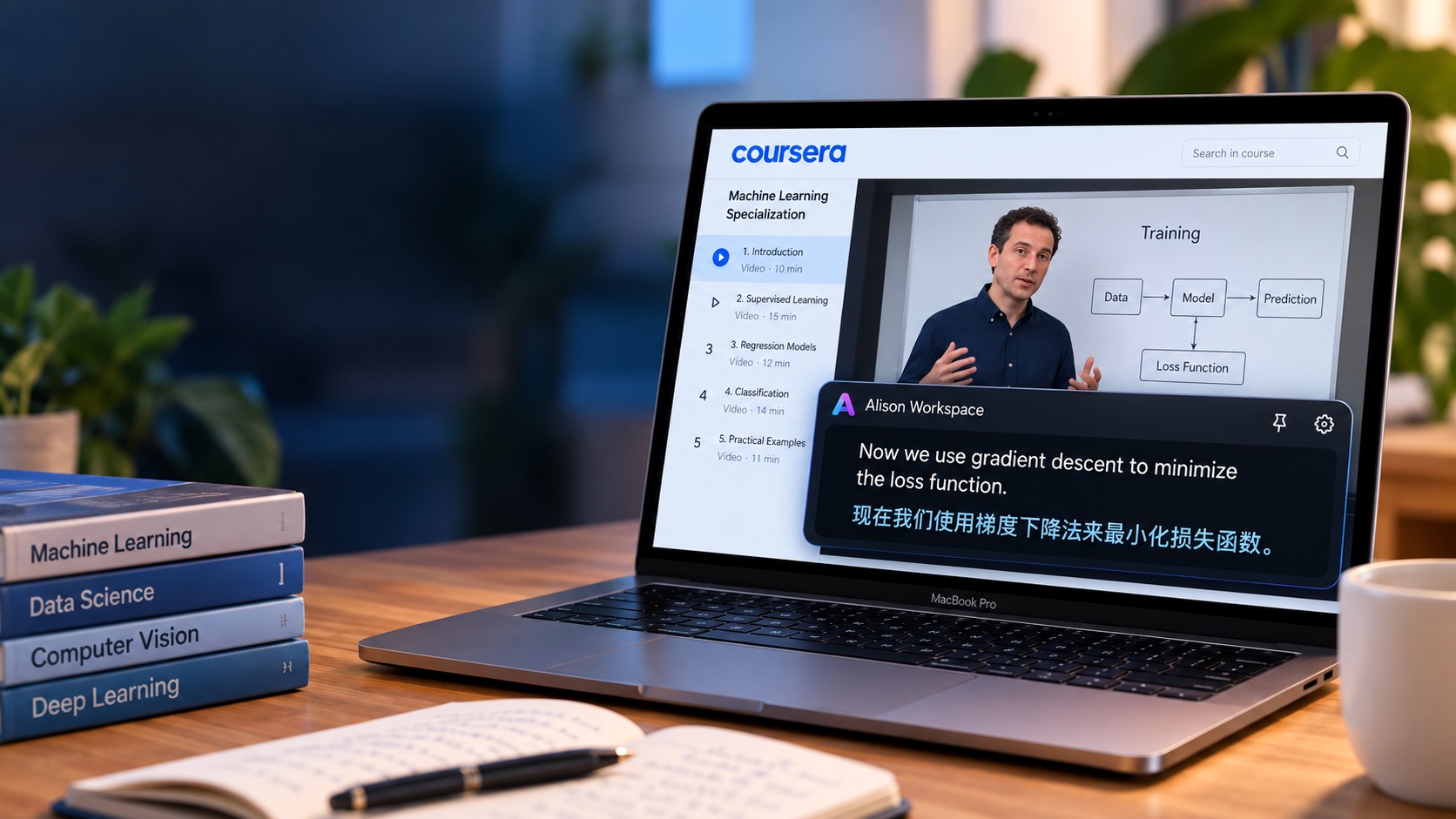
Start with Coursera's Built-In Language Options
Before installing another tool, check the options available directly inside Coursera.
Coursera has invested heavily in multilingual learning. Its AI-powered translations cover thousands of courses and can include translated lecture subtitles, readings, quizzes, assessments, instructions, and other course content.
Some courses also provide AI-dubbed video. Selected Coursera courses also offer AI-dubbed audio. The available courses and languages can change, so check the individual course page for current options.
If your course already provides accurate subtitles or dubbed audio in the language you understand best, that is usually the simplest way to study. Native course translations also have an important advantage: they are integrated with the learning experience rather than generated from the audio in real time.
The problem appears when the specific combination you need is not available.
For example, you may find that a course has English subtitles but not Chinese subtitles, or that translated course materials are available while the lecture audio still requires more effort to follow. Another course may simply offer fewer languages.
That is where live translation on the Mac can be useful.
What Real-Time Lecture Translation Means
There are two different ways to translate an online course.
The first is pre-translated content. Coursera prepares the translated subtitles, text, or dubbed audio before you watch the lesson.
The second is real-time translation. Software listens to the lecture while it is playing, recognizes what the instructor says, and translates the recognized text as the video continues.
Alison Workspace uses the second approach.
It does not modify the Coursera website or download the course video. Instead, it works with ordinary system audio available to macOS.
You continue watching the lecture in your browser as usual. Alison Workspace listens to the audio your Mac is playing, recognizes the spoken language, and shows live captions in a separate floating window.
When translation is enabled, the original text and translated text can appear together.
That distinction is useful for learning because you do not have to choose between understanding the meaning and seeing what the instructor actually said.
Why Bilingual Captions Can Be Better for Studying
A translated subtitle is helpful when your main goal is understanding the lesson. But completely replacing the original language can make it harder to connect technical terminology with the words used by the instructor.
This matters especially in subjects such as programming, artificial intelligence, business, finance, engineering, and data science.
An instructor might say:
"We use gradient descent to minimize the loss function."
If you only see a translated version, you may understand the idea but miss the English technical terms that later appear in documentation, assignments, interviews, or code.
With bilingual captions, you can keep the recognized English sentence visible while reading the translation underneath it.
The original line becomes a reference rather than an obstacle.
For international students and language learners, this can be more useful than translation alone.
How to Translate a Coursera Lecture on Mac
The workflow is straightforward.
- Open the Coursera course on your Mac and start the lecture you want to watch.
- First check Coursera's subtitle and language menu. If your preferred translation is already available and works well, use it.
- If you need a different language or want a bilingual caption view, open Alison Workspace.
- Allow the macOS system-audio permission requested by the app.
- Select the language spoken by the instructor.
- Select the language you want to read.
- Start live captioning and play the Coursera lecture.
- Move or resize the floating subtitle bar so it does not cover the instructor, slides, code, or Coursera controls.
For example, an English lecture could be recognized in English and translated into Simplified Chinese. A Japanese lecture could be recognized in Japanese and translated into English.
The exact translation languages available depend on the language resources supported and installed on the Mac.
You Do Not Need to Upload the Course Video
For this workflow, Alison Workspace does not need the Coursera video file.
That is an important difference from file-based transcription tools.
The course continues playing normally in the browser, while the app works from audio available to the Mac.
There is no need to download the lecture, create an SRT file first, or repeatedly copy text into a translation website.
This also makes the same workflow useful outside Coursera. If you later move from a Coursera lecture to a webinar, YouTube tutorial, meeting, podcast, or another ordinary audio source on your Mac, the caption window can continue serving the same basic purpose.
Coursera Translation vs. Alison Workspace
These two approaches are not really competing solutions. They solve slightly different problems.
Coursera's built-in translation should normally be the first option when your course and preferred language are supported. It is directly integrated with the course and may include much more than subtitles, such as readings, quizzes, assessments, instructions, and other learning materials.
Alison Workspace becomes more useful when you want a personal caption layer at the Mac level.
That may include situations where your target language is unavailable for a particular lecture, where you want the source and translation visible together, or where your study workflow moves between Coursera and other apps.
The distinction is simple:
Coursera translates the course experience. Alison Workspace translates accessible audio playing on your Mac.
For many learners, the best approach is to use Coursera's native language support whenever it solves the problem and keep a system-level caption tool for situations where it does not.
A Useful Setup for International Students
Imagine a Chinese student taking an English machine-learning course.
The instructor speaks English, the slides contain mathematical notation and English technical terms, and the student understands most of the lesson but occasionally loses track when explanations become fast or abstract.
Replacing everything with Chinese can make the lesson easier to understand but may separate the student from terminology such as training set, overfitting, loss function, and gradient descent.
A bilingual setup provides another option.
The English sentence remains visible while the Chinese translation provides a quick comprehension layer underneath it. The student can continue watching instead of pausing the video every few seconds to look up a phrase.
The same pattern can apply to English-to-Japanese, English-to-Korean, English-to-Spanish, English-to-Arabic, and other supported translation directions.
Live Translation Is Not a Perfect Transcript
Real-time captions should be treated as a comprehension aid, not an authoritative transcript.
Speech recognition accuracy can decrease when a lecture contains poor audio, background music, strong accents, several people speaking at once, unusual names, equations, abbreviations, or specialized terminology.
Translation adds another layer where nuance can change.
This matters in technical courses.
Names, numbers, formulas, commands, code, medical terminology, legal terminology, and domain-specific language should be checked against the course materials when accuracy is important.
One reason to keep the original caption visible is that it gives you a second reference when the translation looks unusual.
What About Privacy and Offline Use?
Alison Workspace follows a local-first workflow.
After the required Apple language resources or local recognition model have been downloaded, supported audio capture, recognition, and translation can run on the Mac. Raw audio is not saved by Alison Workspace, and text history remains locally on the device until you delete it.
The app is intended for personal comprehension of audio available to your Mac rather than for modifying the source course.
You should still respect Coursera's terms, the course provider's rights, and any rules that apply to the content you are watching.
Mac Requirements
Alison Workspace currently requires an Apple-silicon Mac running macOS 15 or later. Intel Macs are not supported.
Recognition and translation are separate capabilities.
The current app provides 101 recognition choices covering 100 spoken languages. Translation is available for up to 21 target-language choices, depending on macOS, region, and the language resources installed on the Mac.
This means a language may be available for speech recognition even if it is not available as a translation target.
Before depending on the app for a long course or live lecture, test the actual language pair and course on your own Mac.
When Should You Use Each Option?
If Coursera already provides good translated subtitles in your preferred language, start there.
If the course provides AI-dubbed audio in your language and you prefer listening instead of reading, that may be even more comfortable.
Use a Mac-level live translation workflow when the built-in language options do not cover what you need, when you want bilingual captions, or when you want one caption setup that can follow you across different learning apps and websites.
There is no reason to add another tool when the platform already solves the problem well.
The useful part of Alison Workspace is filling the gap when it does not.
The Bottom Line
Coursera itself should be your first stop for translated learning. Its multilingual course support is much broader than it used to be, and many learners will not need anything else.
But not every course and language combination is covered, and some students want something different: a bilingual caption layer that follows the audio currently playing on their Mac.
That is the gap Alison Workspace is designed to fill.
Instead of changing the course itself, it gives you a floating reading layer above your existing study workflow — original speech when you need it, translation when you need help, and the same basic setup across Coursera and other Mac audio sources.
For a learner who understands most of a lecture but does not want to pause every time a sentence becomes difficult, that can make online learning significantly easier to follow.
Official sources
Coursera: Celebrating 10 million GenAI enrollments on AI Appreciation Day
Coursera: AI-powered translations expand to 17 popular languages
Apple Support: Get captions of spoken and computer audio on Mac
Frequently Asked Questions
Can Coursera translate lectures into other languages?
Yes. Coursera provides AI-powered translations for thousands of courses. Depending on the course, translations can include lecture subtitles and other learning materials. Availability varies by course and language.
Does Coursera have translated audio?
Selected courses have AI-dubbed audio. The available courses and languages can change, so check the individual course page for current options.
Can I translate a Coursera lecture into Chinese on Mac?
If the course already offers Chinese subtitles, using Coursera's built-in option is usually simplest. If the particular lecture does not provide the language option you need, a system-audio caption app such as Alison Workspace can recognize accessible lecture audio and, when the language pair is supported, display a translated line.
Can I see English and translated subtitles at the same time?
Alison Workspace is designed to display the recognized source text together with a translated line, which can be useful when studying English terminology while reading the meaning in another language.
Do I need to download the Coursera video?
No. Alison Workspace does not require the video file for live captioning. It works with accessible system audio while the lecture plays normally on your Mac.
Do I need a Chrome extension?
No browser extension is required for Alison Workspace's Mac system-audio workflow. It runs as a macOS application rather than a Coursera-specific browser extension.
Can it translate every Coursera course?
Do not assume that every video or audio path will behave identically. Alison Workspace works with ordinary system audio available to macOS, but app, browser, audio-routing, content-protection, and system differences can affect capture. Test the particular course and browser you intend to use.
Is real-time translation accurate enough for technical courses?
It can make a lecture easier to follow, but it should not be treated as a perfect transcript. Technical terminology, names, numbers, formulas, accents, and specialized vocabulary can produce recognition or translation errors. Keep the original caption visible and verify important information against the course materials.