
How to Watch Udemy Courses with Live Translated Subtitles on Mac
Learn how to watch Udemy courses with live translated subtitles on Mac when your preferred subtitle language is unavailable. Compare Udemy captions with bilingual live translation.
2026-09-30 · 9 min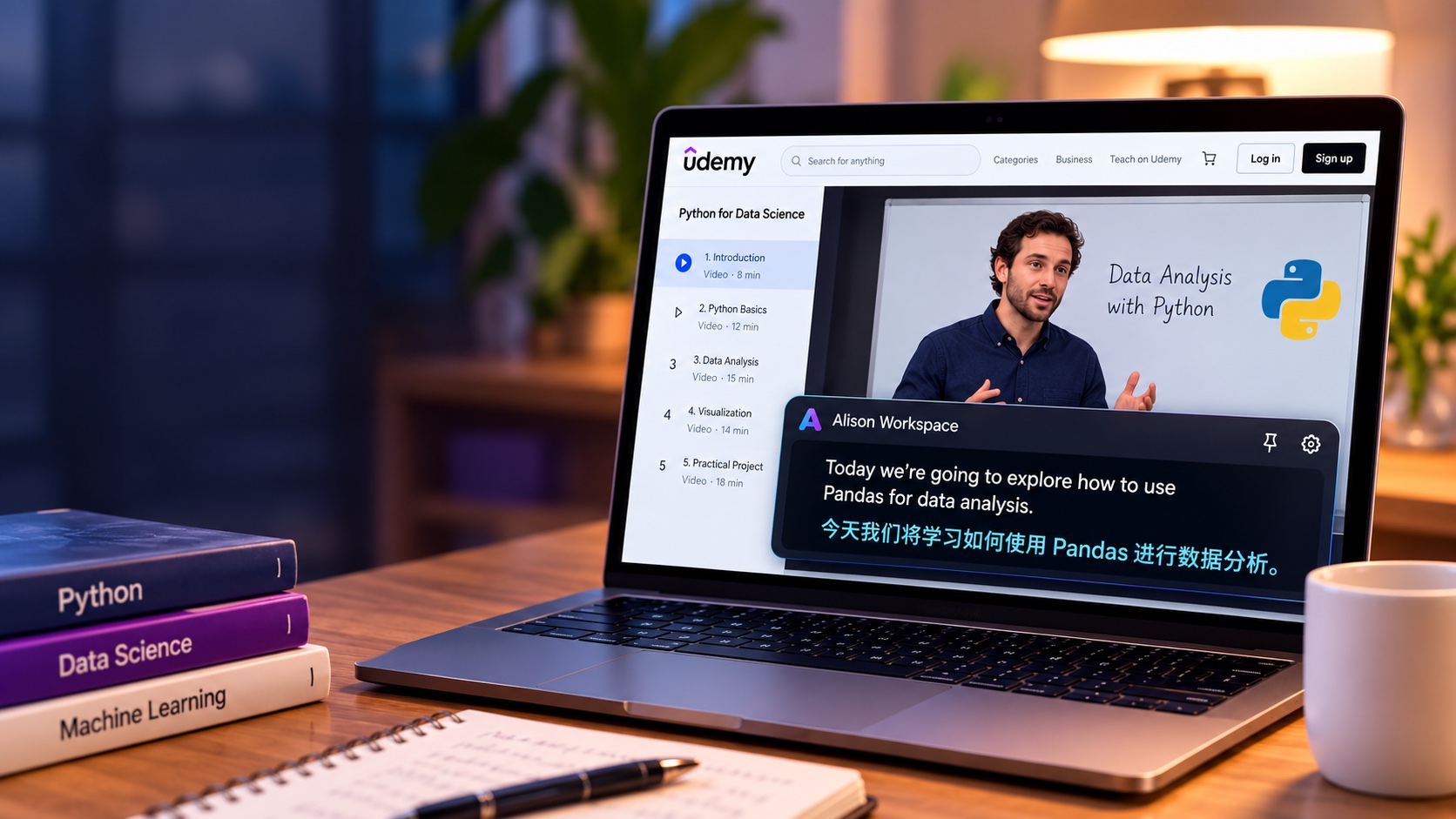
First, Check the Subtitles Already Available on Udemy
Before using another app, check the course's built-in subtitle options.
If subtitles are available for a lecture, Udemy shows a closed-caption control in the course player. You can select one of the available subtitle languages and adjust settings such as caption size and background opacity.
Udemy also provides transcripts for courses that have subtitles. The transcript follows the lecture as it plays and can make it easier to review what the instructor has said.
Udemy automatically creates subtitles for thousands of eligible courses using speech-recognition technology, and instructors can also upload their own caption files.
For many learners, this is already enough.
If your preferred subtitle language appears in the Udemy player and the quality is good, using the built-in subtitles is usually the simplest option.
The difficulty is that subtitle languages vary between courses.
Why Your Udemy Course May Not Have Subtitles in Your Language
Udemy explicitly notes that not every course has subtitles available in every language.
On the regular Udemy marketplace, most subtitles are available in the language spoken in the course, although some courses include subtitles in multiple languages.
Udemy currently generates native-language automatic subtitles for eligible non-language-learning courses taught in several major languages, including English, French, German, Italian, Japanese, Spanish, and Portuguese.
An instructor may also manually upload subtitles in additional languages.
That means two courses on the same subject can have completely different subtitle options.
You might find an excellent English programming course with English captions but no Chinese subtitles.
A Japanese design course might have Japanese captions but no English translation.
Or a Spanish business course may simply not offer the language you want to read.
If that happens, a system-level translation workflow can fill the gap.
Translate the Audio Instead of Waiting for a Subtitle Track
Traditional subtitles depend on someone creating a subtitle file before you watch the video.
Live translation works differently.
Instead of asking:
"Does this course have Chinese subtitles?"
you can ask:
"Can my Mac understand the English audio and translate it into Chinese while the lecture is playing?"
That is the approach used by Alison Workspace.
The Udemy course continues playing normally in your browser.
Alison Workspace works separately at the macOS level. It listens to accessible system audio, recognizes the spoken language, and displays live text in a floating subtitle window.
If translation is enabled, you can see the recognized sentence together with a translated version.
The course itself does not need to contain the translated subtitle track.
How to Translate a Udemy Course on Mac
A basic setup looks like this:
- Open your Udemy course on your Mac.
- Start the lecture you want to watch.
- Check Udemy's built-in CC menu first.
- If your preferred language is available and works well, use the native subtitles.
- If the language you need is unavailable, open Alison Workspace.
- Grant the required macOS system-audio permissions.
- Select the language spoken by the instructor.
- Select your translation language.
- Start live captioning.
- Return to Udemy and continue playing the lecture.
- Move or resize the floating subtitle window so that it does not cover slides, code, demonstrations, or Udemy controls.
For example:
English lecture → English recognition → Simplified Chinese translation
or:
Japanese lecture → Japanese recognition → English translation
The exact translation options depend on the language resources available on the Mac and the capabilities supported by Alison Workspace.
Why Bilingual Subtitles Are Useful for Technical Courses
A lot of Udemy's most useful material is technical.
Programming, artificial intelligence, cloud computing, cybersecurity, design, finance, marketing, and data-analysis courses all contain terminology that learners eventually need to recognize in the instructor's original language.
Imagine an English programming instructor says:
"We're going to pass this function as a callback and execute it asynchronously."
A Chinese translation may make the meaning easier to understand.
But terms such as:
- callback
- function
- asynchronous
- API
- dependency
- object
- framework
often remain important in English.
If you only see translated text, it can sometimes be harder to connect what you are learning with documentation, source code, interview questions, and future technical discussions.
A bilingual subtitle setup lets you use the translation for comprehension while keeping the original wording visible.
For technical learning, that can be more useful than replacing the source language entirely.
No Need to Download the Udemy Video
A system-audio workflow does not require you to download the course video.
You do not need to:
- save the lecture locally;
- extract its audio;
- create an SRT file;
- upload it to a transcription website;
- wait for a full transcript before studying.
The lecture simply continues playing.
The captions are generated while you watch.
This is particularly useful when you are working through a long course with dozens or hundreds of lectures. A file-based workflow would add extra work to every lesson.
It Also Works as a Cross-Platform Learning Workflow
Another advantage of a Mac-level caption layer is that it is not tied only to Udemy.
A learner might spend one hour in Udemy, then move to:
- YouTube;
- Coursera;
- a university lecture;
- a webinar;
- a Zoom meeting;
- a podcast;
- documentation videos;
- another browser-based training platform.
A platform-specific subtitle feature disappears when you leave that platform.
A system-level caption workflow can remain part of your Mac study setup across different audio sources.
This is one of the main reasons to use Alison Workspace when built-in subtitle systems are not enough.
Udemy Built-In Subtitles vs. Live Translation on Mac
Udemy's native subtitles should usually be your first choice when they provide what you need.
They are integrated directly into the course player. Some instructors also review or upload their own captions, which may make them more accurate than live speech recognition.
Udemy transcripts can also be useful for navigation and reviewing a lesson.
A Mac-level tool serves a different purpose.
It becomes useful when:
- the course has no subtitles in your preferred language;
- you want the original language and translation visible together;
- you study across several different websites;
- you do not want to download each lecture;
- you want the same subtitle interface across different Mac applications.
The simplest distinction is:
Udemy subtitles belong to the course. Alison Workspace captions belong to your Mac listening workflow.
The two can complement each other rather than replace each other.
What About Udemy Business?
Udemy Business should be treated separately from the regular Udemy marketplace.
Udemy Business provides localized subtitles for many English-language courses in a wider range of languages. According to Udemy's current documentation, those languages include Arabic, Dutch, French, German, Indonesian, Japanese, Polish, Portuguese, Simplified Chinese, Spanish, Thai, Traditional Chinese, Turkish, and Vietnamese for eligible non-language-learning courses taught in English.
That is significantly broader than the automatic subtitle coverage a learner should assume for an arbitrary course on the regular marketplace.
If you are using Udemy through your employer and the course already offers a good translation in your preferred language, use that first.
A live Mac translation layer becomes more relevant when the course or language you need is outside the available options, or when you prefer bilingual text.
A Practical Example
Suppose a Mandarin-speaking developer finds an excellent Udemy course on machine learning.
The instructor teaches in English.
English auto-generated subtitles are available, but Chinese subtitles are not.
The learner can understand written English fairly well but struggles when the instructor speaks quickly while explaining mathematical concepts.
Instead of pausing every few seconds to translate a sentence manually, the learner can use:
English recognition
together with:
Simplified Chinese translation
The English line helps preserve terminology such as:
- gradient descent;
- training data;
- loss function;
- neural network;
- inference.
The Chinese line helps the learner follow the overall explanation.
The result is not a replacement for learning English or studying the original material.
It is a comprehension layer that helps the learner stay with the lecture.
Live Captions Are Not Guaranteed to Be Perfect
Automatic speech recognition has limitations.
Accuracy can be affected by:
- poor recording quality;
- background music;
- strong accents;
- very fast speech;
- several speakers talking at once;
- specialist terminology;
- names;
- abbreviations;
- code;
- equations;
- product names.
Translation adds another possible source of error.
This matters especially in courses involving medicine, finance, law, engineering, programming, mathematics, or other technical subjects.
Use live translation to understand the lecture more easily, not as an authoritative transcript of every word.
When an exact number, command, formula, or technical term matters, check it against the instructor's slides, Udemy subtitles, course resources, or official documentation.
What About Privacy?
Alison Workspace uses a local-first workflow.
For supported configurations, once the necessary language resources or recognition models are installed, recognition and translation can run locally on the Mac.
Raw audio is not saved by Alison Workspace, and text history remains on the device until the user deletes it.
This can be useful for learners who prefer not to upload each lecture to an external transcription service.
You should still follow Udemy's terms and the rights attached to the course content you purchased or accessed.
Live captions are intended to help you understand content you are already allowed to watch, not to redistribute or reproduce the instructor's course.
Alison Workspace requires an Apple-silicon Mac (M1 or later) running macOS 15 or later; Intel Macs are not supported.
Who Is This Most Useful For?
This workflow is particularly relevant for:
International students
People taking professional or academic courses in a second language.
Developers and technical learners
Learners who need translation but still want to see original English technical terminology.
Language learners
People intentionally studying the language spoken by the instructor and using translations only when needed.
Professionals learning from international instructors
Someone may find that the best course on a niche subject happens to be taught in Japanese, Spanish, English, or another language.
Learners using several education platforms
If your study workflow moves between Udemy, Coursera, YouTube, webinars, and meetings, a system-level caption tool can be more consistent than relying on each site's subtitle system.
The Bottom Line
Udemy already provides useful caption tools, and learners should always check the built-in subtitle options first.
But the perfect course is not always available in the perfect language.
You may find an outstanding instructor, exactly the subject you need, and high-quality course material — but only subtitles in a language you cannot comfortably follow.
That does not necessarily mean you need to find another course.
A Mac-level live translation workflow gives you another option.
Alison Workspace can turn accessible lecture audio into live captions and display a translation while the course continues playing. The original language remains available for terminology, while the translation helps you follow the meaning.
For learners working across international courses, that can turn language from a reason to skip a course into a much smaller obstacle.
Official sources
Udemy Support: Finding Courses With Subtitles
Udemy Business Support: Finding and viewing courses with subtitles
Apple Support: Get captions of spoken and computer audio on Mac
Frequently Asked Questions
Does every Udemy course have subtitles?
No. Udemy provides auto-generated subtitles for thousands of eligible courses, and instructors can upload their own captions, but subtitle availability depends on the individual course.
Does Udemy translate subtitles into every language?
No. Most subtitles on the regular Udemy marketplace are available in the language spoken in the course, although some courses provide multiple subtitle languages. Availability varies by course.
How do I know which subtitle languages a Udemy course supports?
Check the course landing page and the closed-caption options in the course player. Udemy displays available subtitle languages for the course.
Can I translate an English Udemy course into Chinese on Mac?
If the course already includes Chinese subtitles, using those is usually simplest. Otherwise, a Mac-level caption app such as Alison Workspace can recognize accessible English audio and display a Chinese translation when that language pair is supported.
Can I see English and Chinese subtitles together?
Alison Workspace can display recognized source text together with translated text, allowing a bilingual subtitle workflow.
Do I have to download the Udemy lecture first?
No. For live captioning, Alison Workspace works from accessible audio while the lecture is playing on the Mac.
Can I use this for Japanese Udemy courses?
If Japanese recognition is supported in your current configuration, a Japanese lecture can be recognized and translated into a supported target language such as English.
Will live translation be perfectly accurate?
No. Recognition and translation can both make mistakes, particularly with accents, technical terms, names, numbers, code, or poor-quality audio. Use it as a learning aid and verify important information against course materials.
Is Udemy Business different?
Yes. Udemy Business offers localized subtitles for many eligible English-language courses in more languages than a learner should assume are available on every regular marketplace course.