
How to Get Live Japanese Subtitles for English Lectures on Mac
Learn how to show live Japanese subtitles for English lectures on Mac. Use bilingual English-Japanese captions for courses, webinars, university lectures, and technical training.
2026-09-30 · 12 min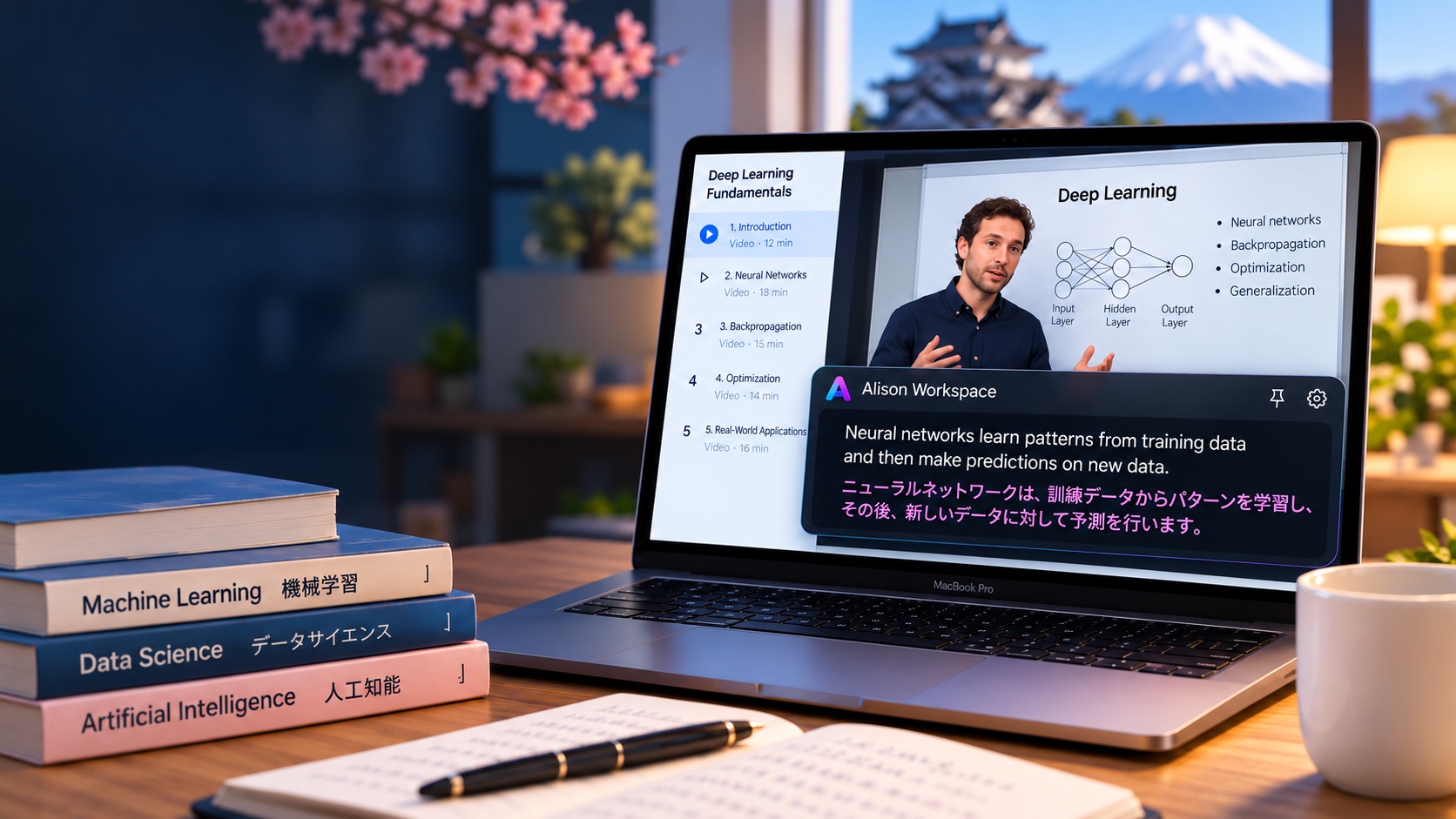
First, Check Whether Japanese Subtitles Already Exist
Before adding another tool, check the course or video platform itself.
Many platforms provide subtitles directly.
Depending on the course, Japanese subtitles may already be available on services such as:
- Coursera;
- Udemy;
- YouTube;
- university learning platforms;
- professional training websites;
- recorded webinars.
If accurate Japanese subtitles are already available, they are usually the simplest option.
Platform-provided subtitles may have been prepared or reviewed specifically for the course. They can also include terminology that a real-time speech-recognition system may not recognize perfectly.
A separate Mac translation layer becomes more useful when:
- Japanese subtitles are not available;
- only English captions are provided;
- the lecture is live;
- you want English and Japanese visible together;
- you move between several learning websites;
- you want one consistent subtitle interface across your Mac.
Why English Lectures Can Be Difficult Even When You Know English
Reading English gives you control over the speed.
You can stop.
You can reread a sentence.
You can look up an unfamiliar word.
A spoken lecture does not wait.
Consider this sentence:
"The model generalizes well because the regularization term prevents it from fitting noise in the training data."
A learner may know most of those English words individually but still need extra time to understand the entire explanation.
Before that happens, the instructor may already be discussing the next slide.
This is one reason bilingual subtitles can be useful.
The English line shows what was recognized.
The Japanese line provides a faster comprehension layer.
You can keep listening without turning every difficult sentence into a separate translation task.
How English-to-Japanese Live Subtitles Work
The workflow has several stages:
English lecture audio
→ English speech recognition
→ English live caption
→ Japanese translation
→ floating bilingual subtitles
The lecture itself continues playing in the original website or application.
Alison Workspace does not need to become part of the course platform.
Instead, it works with accessible audio already playing through macOS.
This makes the same basic workflow useful across many sources, including:
- online courses;
- YouTube lectures;
- university recordings;
- webinars;
- conference presentations;
- professional training;
- technical demonstrations;
- podcasts;
- other ordinary audio playing on the Mac.
How to Show Japanese Subtitles for an English Lecture on Mac
A typical setup looks like this.
- Start the lecture
Open the course, lecture, or training video on your Mac.
Make sure the audio is playing correctly.
- Check the platform's native subtitles
Look for:
- CC;
- Captions;
- Subtitles;
- Language;
- Translation.
If Japanese subtitles are already available and accurate enough, use them.
- Open Alison Workspace
Launch Alison Workspace and make sure the required macOS permissions for accessible system audio have been granted.
- Choose English as the spoken language
If the instructor is speaking English, explicitly selecting English gives the speech recognizer a clear starting point.
- Choose Japanese as the translation language
Select Japanese as the target language.
Recognition and translation are separate settings.
The app first needs to understand the English speech before it can translate that recognized text into Japanese.
- Start live captioning
Resume the lecture.
The original English caption should appear as the instructor speaks, with Japanese translation underneath when translation is available.
- Position the subtitle window
Move the floating subtitle bar somewhere that does not cover important material.
For a lecture, that may mean keeping it:
- below the slides;
- above the video controls;
- beside the presentation;
- near the bottom of a second monitor.
The subtitle window can be adjusted around the content instead of forcing the course itself into a different layout.
Why Keep the English Caption?
If your goal is simply to understand the lecture, it may seem easier to show Japanese only.
But keeping the English line has several advantages.
Imagine a programming instructor says:
"We'll implement dependency injection so the service is easier to test."
The Japanese translation may help you understand the idea.
But the English terms:
- dependency injection;
- service;
- implement;
- test;
may later appear in:
- documentation;
- source code;
- GitHub issues;
- technical interviews;
- error messages;
- other English courses.
If you only read the Japanese translation, you may understand the concept without learning the terminology used in the wider technical ecosystem.
With bilingual subtitles, you can see both.
Technical Courses Are a Particularly Good Fit
English-to-Japanese captions can be especially useful when a subject contains international terminology.
Software development
Programming courses often mix ordinary spoken English with terms that developers normally keep in English.
Examples include:
- API;
- framework;
- callback;
- dependency;
- runtime;
- repository;
- deployment;
- thread;
- cache.
Artificial intelligence
AI lectures frequently use terms such as:
- transformer;
- token;
- embedding;
- inference;
- fine-tuning;
- gradient descent;
- loss function.
Japanese learners may understand the explanation more quickly in Japanese while still needing to recognize these terms in English.
Design
Courses may use expressions such as:
- user experience;
- wireframe;
- prototype;
- layout;
- interaction;
- accessibility.
Business
English business training often contains terminology that appears in international workplaces:
- revenue;
- retention;
- acquisition;
- margin;
- stakeholder;
- conversion;
- strategy.
The Japanese line helps with meaning.
The English line preserves the vocabulary.
A Practical Example
Suppose a Japanese software engineer wants to study an English machine-learning course.
The instructor explains:
"Overfitting happens when the model learns patterns that do not generalize to unseen data."
The learner may already recognize:
- model;
- overfitting;
- data.
But understanding the entire English sentence in real time still requires effort.
With bilingual captions, the learner can see the English sentence while reading a Japanese translation underneath it.
Instead of pausing the lecture, opening another translation service, and manually entering the sentence, the learner can continue watching.
When the sentence is easy, the Japanese line can be ignored.
When the explanation becomes difficult, it is already there.
That is the main purpose of live translation: not to replace English, but to reduce the cost of moments when comprehension drops.
No Need to Download the Lecture
This workflow does not require a local copy of the course video.
You do not need to:
- download the MP4;
- extract the audio;
- upload the lecture;
- wait for a transcript;
- create an SRT file;
- manually synchronize subtitles.
The course continues playing normally.
The captions are generated while you watch.
This makes live translation especially useful for courses containing dozens of lessons.
A file-based workflow can be useful when you need a polished transcript after the fact.
But if the goal is simply to understand the lecture while studying, real-time subtitles are a different and often simpler workflow.
The Same Setup Can Follow You Across Learning Platforms
A learner rarely studies from only one website.
A typical day could include:
Udemy
→ YouTube technical tutorial
→ Coursera
→ company webinar
→ recorded conference session
→ English podcast.
Platform-specific subtitles may work differently in every place.
A system-level caption workflow gives you one consistent interface.
That is one of the main reasons Alison Workspace is designed around Mac audio rather than around a particular course provider.
What Apple's Live Captions Can Do
On supported Apple-silicon Macs, Apple's built-in Live Captions can turn supported spoken or computer audio into text.
If your main problem is simply understanding the English words being spoken, Apple's own Live Captions may already be useful.
However, transcription and translation are different capabilities.
Apple also provides Live Translation in specific communication experiences such as FaceTime, Messages, and Phone.
For ordinary online lecture audio playing in a browser or course application, you should not assume that the system's Live Captions feature automatically provides an English-to-Japanese translation layer.
This is where a bilingual system-audio workflow serves a different purpose.
Japanese Is a Translation Target in Alison Workspace
Alison Workspace separates recognition languages from translation targets.
The current recognition catalog covers 100 spoken languages through 101 selectable recognition choices.
Translation has a smaller target-language catalog.
Japanese is currently included as one of the available translation targets.
Actual translation availability can still depend on:
- macOS version;
- region;
- downloaded Apple language resources;
- the specific language pair.
Because of this, it is better to test English-to-Japanese translation on the Mac before an important lecture.
Why Manual Language Selection Is Better for a Known Lecture
If you already know that the instructor speaks English, select English.
Automatic language detection is useful when you do not know the source language.
But an online lecture normally has a predictable language.
Explicit selection reduces uncertainty and gives the recognition system a more specific starting point.
For an English-to-Japanese lecture workflow:
Recognition language: English
Translation target: 日本語
is preferable to relying on automatic detection unnecessarily.
Live Translation Can Help Reduce Constant Pausing
Without bilingual captions, a difficult English course can become a cycle:
- hear an unfamiliar sentence;
- pause;
- replay it;
- read the English caption;
- copy a phrase;
- open a translation tool;
- read Japanese;
- return to the lecture;
- repeat.
This breaks concentration.
It also makes a 30-minute lecture take much longer.
Live translation cannot remove every language difficulty, but it can reduce the number of times you leave the lesson.
You can continue watching until something genuinely deserves deeper study.
Use Japanese as Support, Not Necessarily as the Primary Subtitle
Learners can use bilingual subtitles differently depending on their English level.
Beginner or lower-intermediate
Read Japanese first and refer to English when needed.
Intermediate
Read English first and use Japanese only for difficult sentences.
Advanced
Focus mainly on English and treat Japanese as a backup.
Over time, the same interface can support a gradual reduction in translation dependence.
This is useful for learners who want to understand the subject while also improving English listening ability.
What About Headphones?
A lecture does not necessarily need to play through the Mac's speakers.
If the audio remains available through a supported macOS audio route, headphones can still be part of the workflow.
This is particularly useful for:
- libraries;
- offices;
- shared homes;
- university study spaces;
- commuting setups.
However, actual audio routing matters.
Bluetooth devices, virtual audio drivers, unusual configurations, or protected playback may behave differently.
Always test the same headphones and application you plan to use.
Local-First Processing
Alison Workspace follows a local-first design.
For supported configurations, once the required speech-recognition and translation resources have been downloaded, audio capture, recognition, and translation can run on the Mac.
Raw audio is not saved by Alison Workspace.
Text history remains locally on the device until the user deletes it.
This can be useful for learners who do not want to upload every course recording to a separate transcription service.
Local processing does not change the rights attached to the course itself.
Users should still follow the platform's terms, copyright rules, university policies, and restrictions on recording or redistribution.
Alison Workspace requires an Apple-silicon Mac (M1 or later) running macOS 15 or later; Intel Macs are not supported.
Real-Time Subtitles Are Not Perfect
Automatic speech recognition can make mistakes.
Common difficult cases include:
- unusual names;
- technical terminology;
- abbreviations;
- fast speech;
- strong accents;
- poor recordings;
- background music;
- overlapping speakers;
- equations;
- source code;
- product names.
Translation introduces another possible error layer.
That means bilingual captions should be used as a comprehension aid rather than an authoritative transcript.
For important information, verify:
- numbers;
- formulas;
- exam instructions;
- commands;
- dates;
- legal terminology;
- medical terminology;
- financial figures.
The course's official materials remain the source of truth.
The English Line Helps You See Where an Error Happened
Suppose the instructor says:
"The model uses attention to weight different tokens."
If recognition incorrectly produces:
"The model uses intention to weight different tokens."
the Japanese translation may also become wrong.
If you can see the English line, you can immediately tell that the problem began with speech recognition.
If you only see Japanese, it is harder to diagnose what went wrong.
This is another reason bilingual captions are useful for learning.
Who Can Benefit from English-to-Japanese Live Subtitles?
Japanese university students
Especially students using English-language course videos, online seminars, research presentations, and international learning resources.
Software engineers
A large amount of technical learning material appears first in English.
Researchers
Conference talks, webinars, interviews, and academic presentations often use English even when the researcher's daily work is primarily in Japanese.
Business professionals
International training, SaaS demonstrations, product launches, and company webinars frequently use English.
English learners
Bilingual captions can help bridge the gap between reading English and understanding it at natural speaking speed.
Independent learners
People learning subjects that may not have an equally strong Japanese-language course available.
When You Should Use Another Option Instead
Alison Workspace is not necessary in every situation.
The course already provides good Japanese subtitles
Use the platform subtitles.
You only need English captions
Try the platform captions or Apple's Live Captions first.
You need a polished transcript after the course
A dedicated transcription tool may be more appropriate.
You need professional translation
Automatic live translation is not a substitute for a professional interpreter or reviewed translation.
Accuracy affects safety or formal assessment
Do not rely only on automatic captions.
The strongest use case is straightforward:
You are already listening to English audio on your Mac and want Japanese assistance while it plays.
The Bottom Line
English gives Japanese learners access to an enormous amount of education.
But access to a course is not the same as being able to comfortably follow every sentence.
If a platform already offers good Japanese subtitles, use them.
If English captions are enough, use the simplest built-in option.
But when you want to keep the original English visible while getting Japanese help in real time, bilingual system-audio captions offer another approach.
Alison Workspace listens to accessible English audio playing on your Mac, turns it into live text, and can place a Japanese translation underneath it.
The goal is not to hide the English.
It is to keep one difficult sentence from interrupting the rest of the lesson.
For Japanese students, engineers, researchers, professionals, and independent learners, that can make English-language education much easier to follow.
Official sources
Apple Support: Get captions of spoken and computer audio on Mac
Apple Support: Translate text and speech on Mac
Frequently Asked Questions
Can I translate an English lecture into Japanese in real time on Mac?
Yes. If the platform itself offers Japanese subtitles, use those first. Otherwise, a system-audio caption tool such as Alison Workspace can recognize accessible English audio and display Japanese translation when the required language resources are available.
Is Japanese supported as a translation target?
Yes. Japanese is currently one of Alison Workspace's listed translation targets. Actual availability can depend on macOS, region, installed language resources, and the language pair.
Can I show English and Japanese at the same time?
Yes. Alison Workspace can show recognized source text together with a translated line, creating a bilingual English-Japanese subtitle view.
Do I need to upload the lecture?
No. Live captioning works with accessible audio while the lecture is playing on your Mac.
Can I use it with Coursera?
Yes, for ordinary accessible course audio. Check Coursera's own translated subtitles first because the course may already provide Japanese.
Can I use it with Udemy?
Yes, where the lecture audio is accessible through macOS. Again, check the course's subtitle menu first.
Can I use it with YouTube lectures?
The same system-audio workflow can be used with ordinary accessible YouTube audio. YouTube's own subtitles or translated captions may still be the simpler choice when they are available and accurate.
Can Apple Live Captions translate the lecture into Japanese?
Apple's Live Captions can transcribe supported computer audio. Apple's Live Translation is provided in specific communication contexts. Do not assume ordinary system Live Captions automatically translate arbitrary lecture audio into Japanese.
Will technical terms be accurate?
Not always. Technical terminology, names, abbreviations, code, numbers, and unusual vocabulary are common sources of speech-recognition and translation mistakes.
Does it work offline?
After the required local speech and translation resources are installed, supported Alison Workspace workflows can run locally on the Mac. The initial resource download may require an internet connection.